


How to Use Movie Maker [ALPHA]
On this page
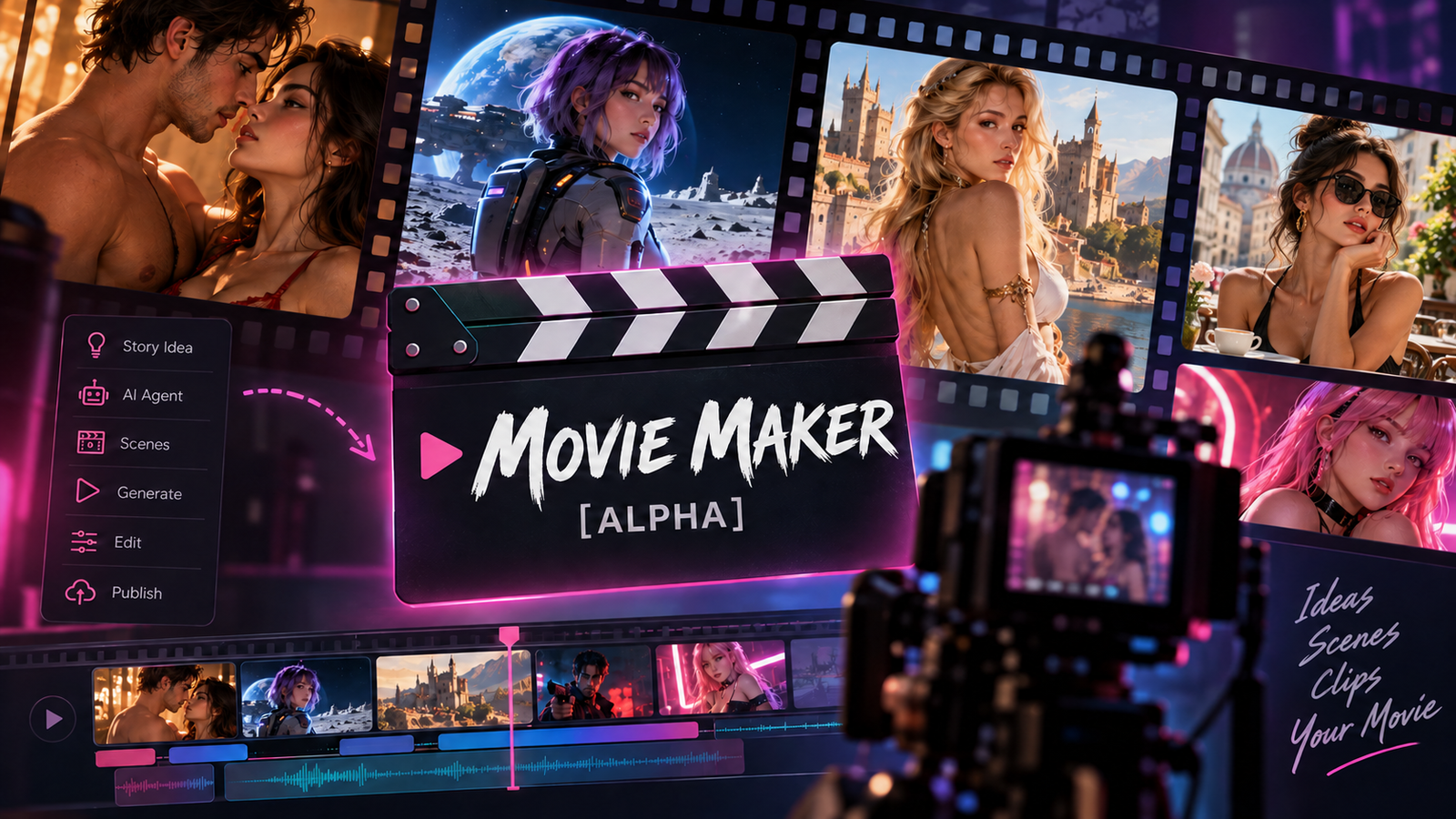
Movie Maker helps you turn a story idea into a complete AI-generated movie using a mix of Agent planning and hands-on clip editing.
You can let the Agent plan and generate the movie for you, or take more control by reviewing prompts and working clip by clip.
Movie Maker [ALPHA]
Movie Maker is currently in alpha while we fine-tune the experience. Results may vary as we continue improving video quality, consistency, and reliability.
Before You Start
The recommended workflow is:
Plan → Review → Execute → Inspect → Selectively Regenerate
For most users, the best approach is a mix of Agent assistance and manual control. Let the Agent help plan your movie, review its proposal before generating, then fix individual clips instead of rebuilding the entire project.
Choose Your Workflow
Fast / One-Shot:
- Review and refine the Agent's movie plan.
- Approve the plan.
- Note: You can enable auto-approve to skip future approval steps.
- Let the Agent generate the movie.
- Review the completed clips.
- Regenerate individual clips that need improvement.
Controlled / Step-by-Step:
- Use the Agent to plan scenes, shots, dialogue, camera direction, and prompts.
- Review each stage before generating.
- Generate and refine clips individually.
Recommended: Use the Agent for planning and overall structure, then manually refine only the clips that need more control.
Familiarize Yourself With Video Prompting
Movie Maker relies on video-generation prompts, so understanding how to describe movement, camera behavior, sound, and scene direction will give you more control.
See:
How to Prompt for Video Creation: A Definitive Guide
Our new video models use Natural Language prompting, so if you want to revise clips by rewriting prompts, describing your scenes through written instructions would be the best option.
Natural Language Prompting Guide for Lucid & Studio Engines
The general principles in our Prompt Testing Guide are also useful while we continue expanding Movie Maker:
Prompt Testing Guide: How to Avoid Wasting Gems on Unsupported Prompts
How to Access Movie Maker
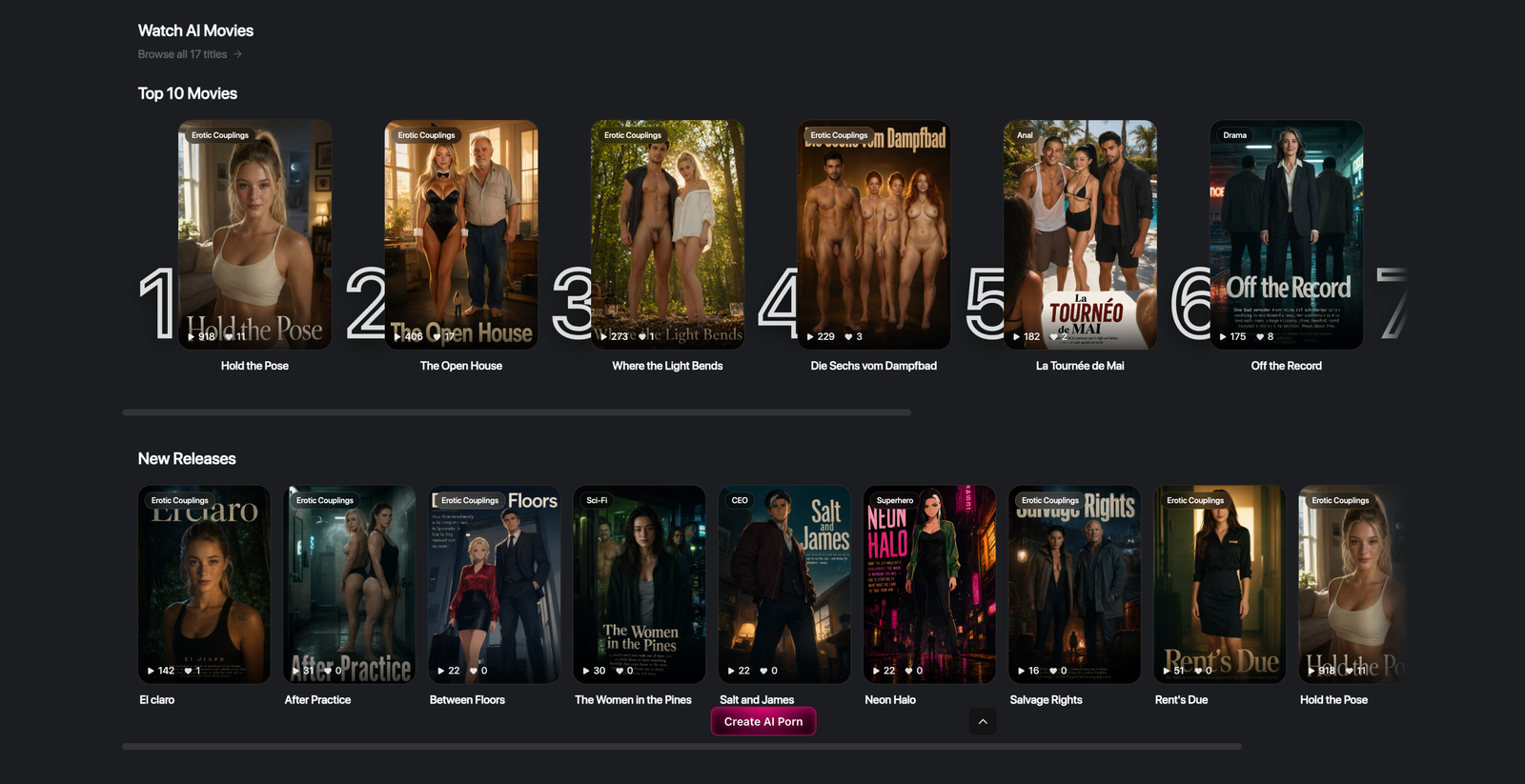
You can access Movie Maker in several ways:
- Browse published movies from the Home page.
- Select Create AI Porn and choose Movie Maker to start a new project.
- Open the User Menu and select Studio to access or manage your existing movies.
Create a New Movie
Add a Title and Description
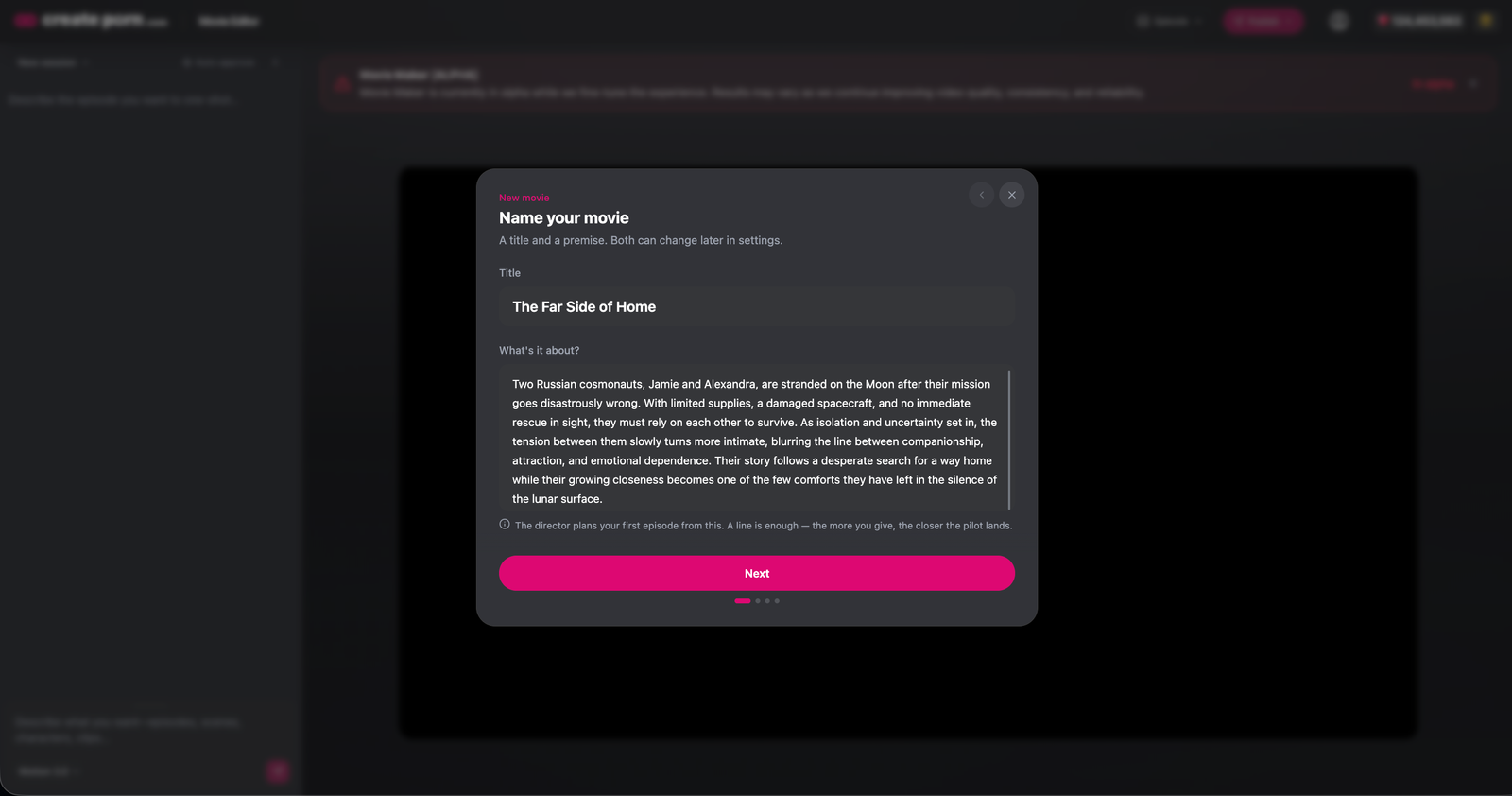
Enter your Movie Name and Description.
The Agent reads your Description as the foundation for the movie and uses it to help plan the story.
Try to include the main Characters, setting, conflict, and overall direction.
Note: The Description is a story brief for the Agent. It is not an individual video prompt.
Select a Style
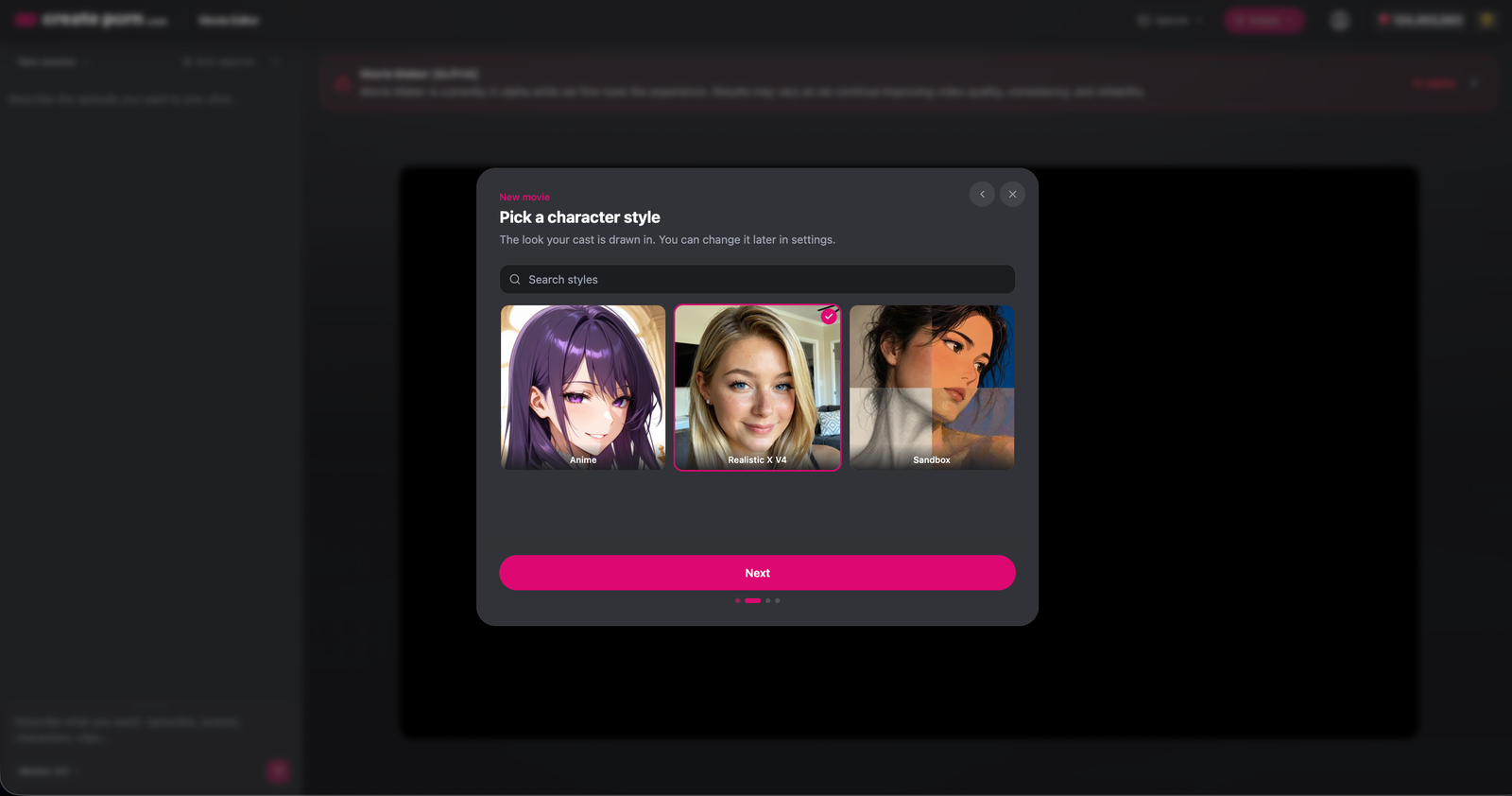
Choose the visual Style you want to use for the movie.
Make sure you are happy with the selected Style before starting the project.
Select Genres
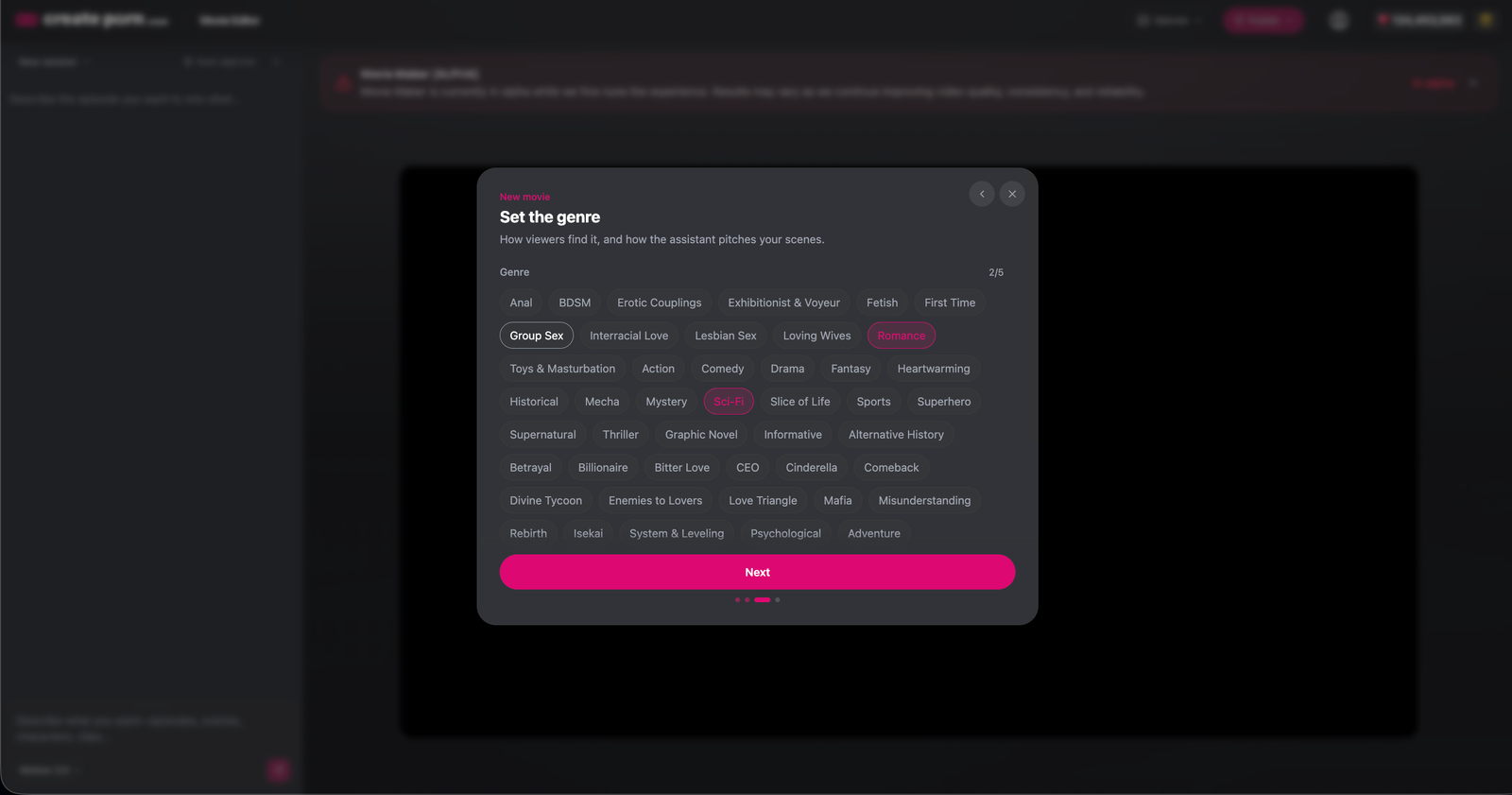
Choose the Genres that best describe your movie.
Genres help other users find your movie after it is published.
Let the Agent Prepare Your Movie Plan
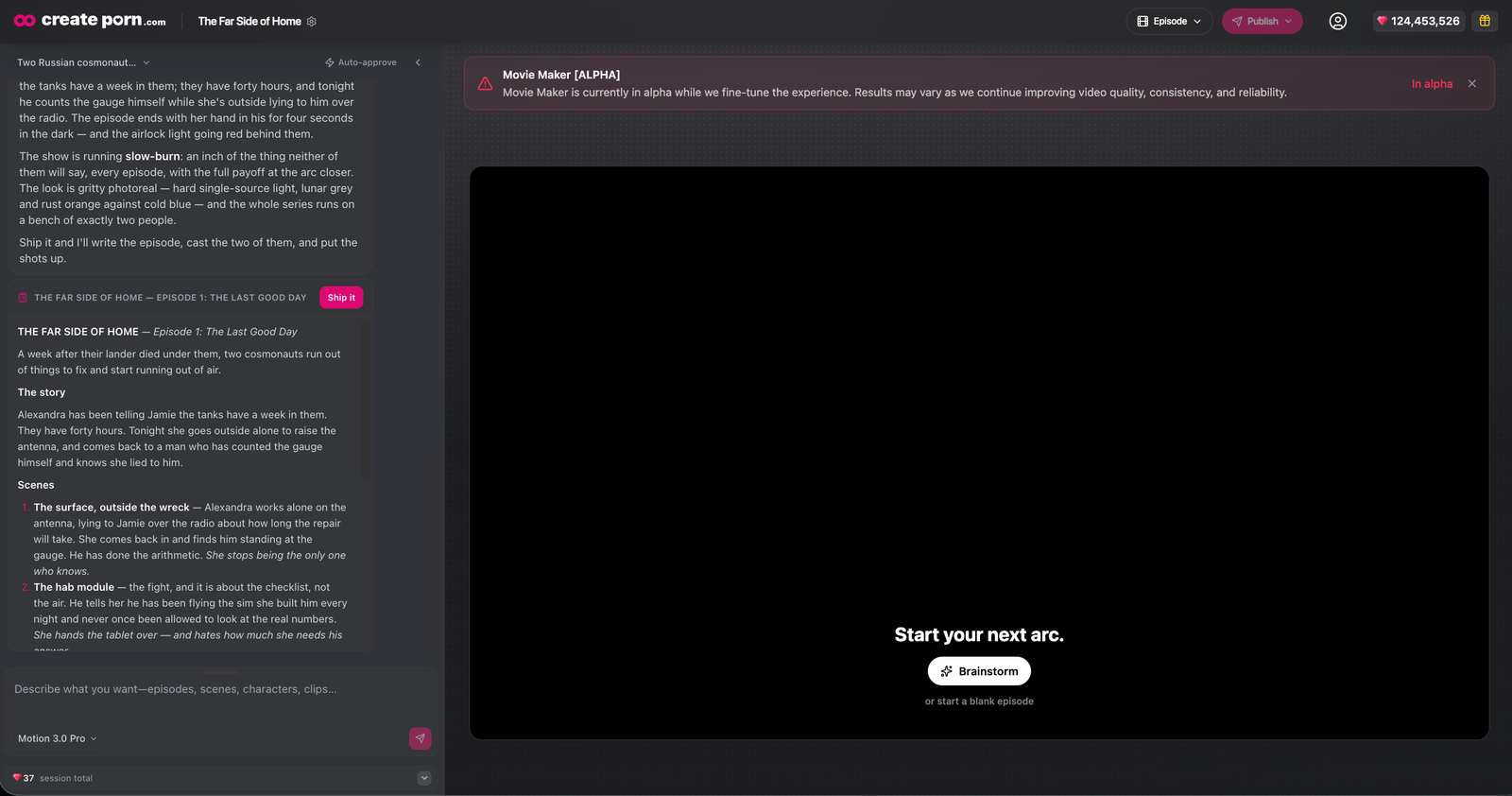
Once the project is created, the Agent reads your story description and prepares a proposed movie plan.
The Agent may plan:
- Characters
- Story structure
- Scenes
- Shots
- Dialogue
- Camera direction
- Shot types
- Pacing
- Transitions
- Sound
- Generation prompts
- Ending
Read the proposal carefully before approving it.
Change the Language Using Your Prompt
You can also use your prompt to tell the Agent which language you want the Movie to use.
Include the language directly in your story description or prompt.
For example:
- Create the dialogue in Japanese
- Write all dialogue in Spanish
- Use English for narration and Korean for Character dialogue
- Make the Movie fully in French
Be clear about where you want the selected language to apply, especially if you are using more than one language.
The Agent can use these instructions when preparing the story, dialogue, narration, and Movie plan.
Review and Refine the Plan
Movie Maker is still in alpha, so the Agent may occasionally misunderstand your story or suggest something you do not want.
Continue talking to the Agent until you are happy with the plan.
You can ask the Agent to:
- Add or remove a scene.
- Change the movie length.
- Rewrite dialogue.
- Adjust pacing.
- Change the ending.
- Change a Character's role.
- Change a shot type.
- Adjust camera movement.
- Change sound direction.
- Rewrite a clip prompt.
- Show the complete scene or shot plan before generating.
Note: Talking to the Agent costs Gems, so read its existing suggestions before sending additional instructions.
Approve the Plan and Start Generation
Once you are happy with the proposed movie, approve the plan to begin generation.
The Agent will start creating clips based on the approved story and shot structure.
Treat this as an important checkpoint. Review the plan before approving it, especially for longer movies.
Note: You can enable auto-approve to skip future approval steps.
Stop the Agent
If the Agent starts doing something you did not intend, press the Stop button in the bottom-right corner of the chat box.
Use Stop when:
- The Agent misunderstood your request.
- Generation started before you were ready.
- You notice a problem with the plan.
- The Agent begins creating unwanted clips.
- You want to change your instructions before it continues.
You can then review what happened and give the Agent updated instructions.
Generate a Full Movie or Work Clip by Clip
Generate the Full Movie
This is the faster approach.
- Create your story.
- Review the Agent's movie plan.
- Refine anything that needs changing.
- Approve the plan.
- Let the Agent generate the movie.
- Review the completed clips.
- Regenerate individual clips that need improvement.
Work Clip by Clip
Use this approach when you want more control.
Ask the Agent to help prepare the scene, shot, dialogue, camera direction, sound, or video prompt without immediately generating the entire movie.
Review the information first, then generate and refine clips individually.
Working With Characters and References
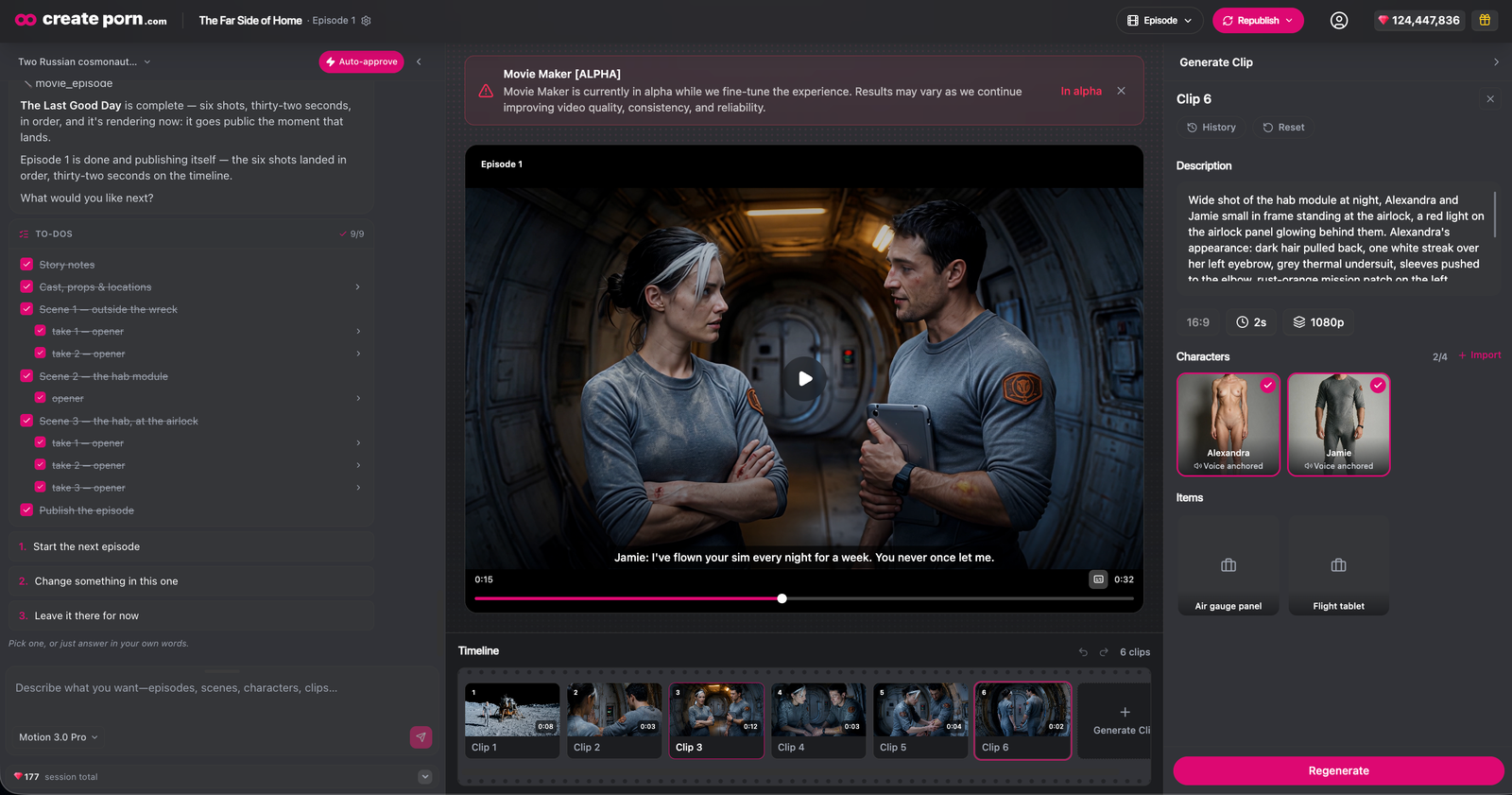
Character and scene consistency may vary between separately generated clips.
For better consistency:
- Establish important Characters early.
- Reuse the same Characters and References.
- Keep important appearance details consistent.
- Keep important locations and visual direction consistent.
- Review each generated clip before moving on.
Check for:
- Face and hair
- Clothing
- Body appearance
- Environment
- Lighting
- Visual Style
- Character placement
- Continuity between clips
If one clip drifts, regenerate that clip instead of rebuilding the entire movie.
Add More Detail When Regenerating Individual Pages or Clips
Note: Comic Maker and Movie Maker are still in alpha, so consistency may vary between generations. These workflows and consistency controls will improve quickly as we continue refining the experience.
When generating or regenerating content page by page or clip by clip, include enough detail for the Engine to understand what should stay consistent from one generation to the next.
Do not assume that every visual detail from the previous page or scene will automatically carry over.
Include important recurring details such as:
- Character appearance, including hair, face, body type, clothing, and accessories.
- Location appearance and important background details.
- Important props or objects.
- Lighting and color tone.
- Visual Style.
- Character positioning and relationships.
- Any details that should remain unchanged between generations.
Example:
Alexandra has shoulder-length black hair, pale skin, blue eyes, and wears a fitted white cosmonaut undersuit. Jamie has messy dark hair, brown eyes, and wears a grey thermal shirt. They are inside the same cramped lunar lander with scratched metal walls, exposed wiring, dim blue instrument lighting, and a small circular window overlooking the Moon.
The Agent uses this information to create the generation prompt and will optimize it using the built-in Prompt Enhancer before sending it to the Engine.
Tip: You do not need to make the prompt longer just for the sake of it. Focus on the visual details that need to remain consistent between pages, scenes, or clips.
Edit and Regenerate an Individual Clip
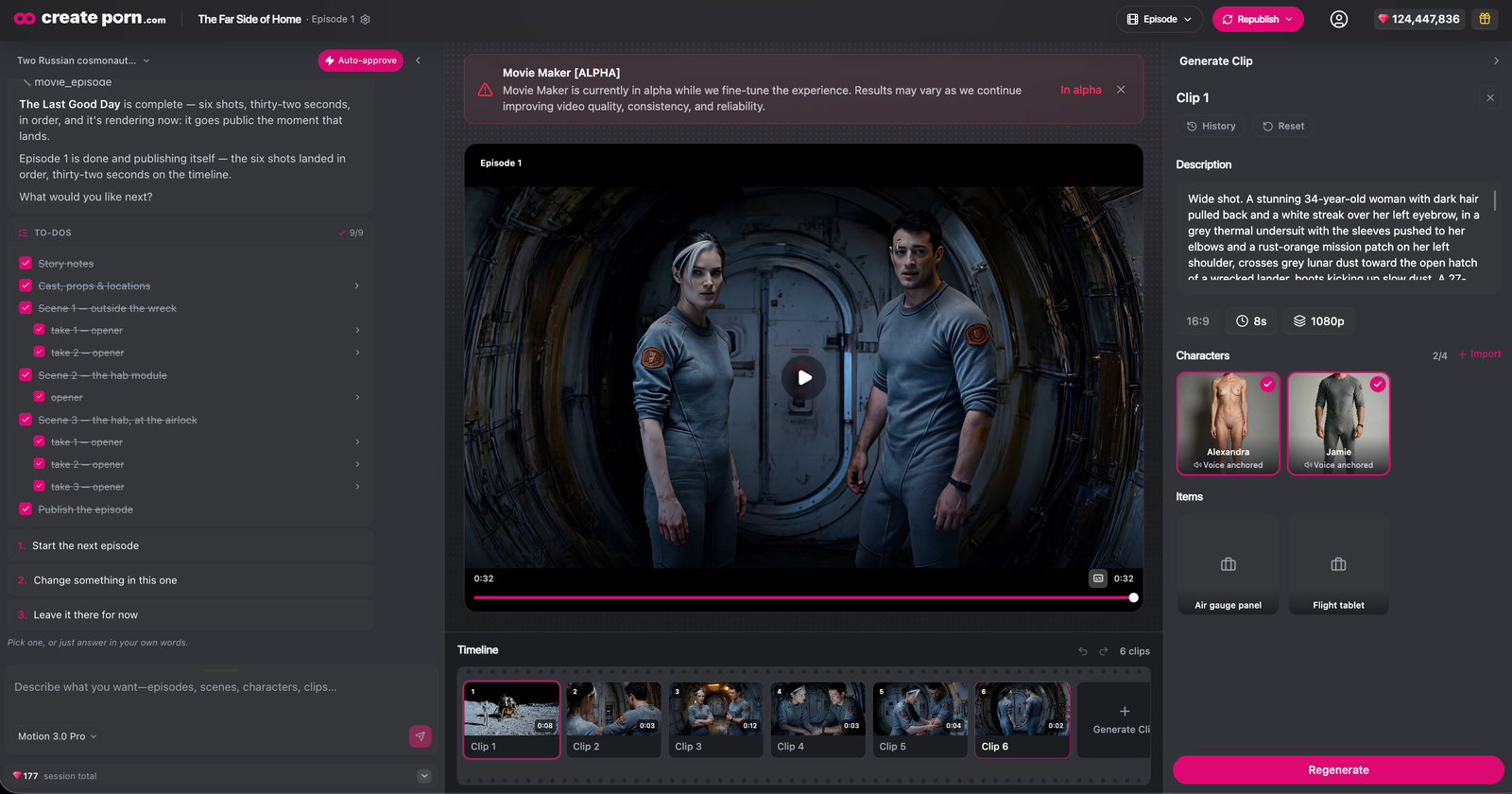
You do not need to regenerate the full movie when one clip needs changing.
- Select the clip from the video timeline.
- Review its available settings.
- Edit the prompt, Characters, References, or other available options.
- Regenerate the individual clip.
This is usually the easiest way to refine a movie after the first generation.
Use the Agent Efficiently
The Agent is most useful for larger planning and creative tasks.
Good uses for the Agent:
- Developing the story
- Planning scenes
- Building shot lists
- Writing dialogue
- Choosing shot types
- Planning camera movement
- Planning transitions
- Suggesting sound
- Writing video prompts
- Reviewing continuity
For smaller changes, manual editing may be faster.
Consider editing manually when you only need to:
- Rewrite one prompt.
- Change one Character.
- Adjust one camera instruction.
- Change dialogue.
- Adjust sound.
- Fix one clip.
- Regenerate one scene.
Review Prompts Before Generating
If you want more control, ask the Agent to show you the clip prompt before generating.
Check the prompt for:
- Characters
- Actions
- Movement
- Environment
- Camera framing
- Camera movement
- Dialogue
- Sound
- References
- Lighting
- Visual Style
- Constraints
You can edit the prompt yourself before generating.
You can also use another chatbot to review or refine the prompt before spending Gems.
How to Save Gems
To reduce unnecessary Gem use:
- Start with a simple movie.
- Plan before generating.
- Read the Agent's proposal carefully.
- Avoid unnecessary Agent messages.
- Ask for a scene and shot plan before generation.
- Review prompts before generating clips.
- Use manual controls for smaller changes.
- Regenerate individual clips instead of rebuilding the movie.
- Use Stop if the Agent begins an unwanted process.
Review Your Movie
Before publishing, review the complete movie.
Check for:
- Character consistency
- Scene order
- Story continuity
- Dialogue
- Camera movement
- Scene transitions
- Character placement
- Visual consistency
- Sound and music
- Missing or unwanted Characters
- Clip quality
- Whether each clip matches the intended plan
If one clip does not work, fix that clip before changing the rest of the movie.
Publish and Share
When your movie is ready:
- Review the final clips.
- Regenerate anything that still needs improvement.
- Press Publish.
- Share your movie with the community.
Published movies can be discovered by other users from the Home page and through the Genres you selected.
Tips
For better results:
- Read what the Agent says before approving anything.
- Start with a simple story.
- Use the Agent mainly for planning and larger creative tasks.
- Review video prompts before generating.
- Keep individual clips focused on one clear action.
- Use manual editing for smaller fixes.
- Review every generated clip.
- Regenerate individual clips whenever possible.
- Keep important Characters and References consistent.
- Use Stop if the Agent begins doing something you did not intend.
Need Help?
If something does not work as expected, try fixing the affected part before rebuilding the movie.
Common issues:
- The Agent misunderstood the story: Simplify or clarify your instructions.
- The movie plan is wrong: Refine it before approving generation.
- The Agent is performing an unwanted action: Press Stop.
- One clip is incorrect: Select it on the timeline and regenerate it.
- A Character looks different: Check the selected Character or Reference.
- Movement looks wrong: Simplify the action or camera direction.
- Several clips are failing: Simplify the movie or work clip by clip.
If the issue continues or the project cannot proceed, contact Support.